Tools for Data Manipulation
IN2039: Data Visualization for Decision Making
Department of Industrial Engineering
Agenda
- Introduction to Python
- Reading data with pandas
- Data manipulation with pandas
Introduction to Python
Python
A versatile programming language.
It is free!
It is widely used for data cleaning, data visualization, and data modelling.
It can be extended with packages (libraries) developed by other users.
Google Colab
Google’s free cloud collaboration platform for creating Python documents.
Run Python and collaborate on Jupyter notebooks for free.
Harness the power of GPUs for free to accelerate your data science projects.
Easily save and upload your notebooks to Google Drive.

Let’s try a command in Python
What do you think will happen if we run this command?
Hello world!Let’s try another command
What do you think will happen if we run this command?
16Use Python as a basic calculator
Introduction to functions in Python
One of the best things about Python is that there are many built-in commands you can use. These are called functions.
Functions have two basic parts:
The first part is the name of the function (for example,
sum).The second part is the input to the function, which goes inside the parentheses (
sum([1, 5, 15])).
Python is strict
Python, like all programming languages, is very strict. For example, if you write
it will tell you the answer, 101.
But if you write
---------------------------------------------------------------------------
NameError                                 Traceback (most recent call last)
Cell In[11], line 1
----> 1 Sum([1, 100])

NameError: name 'Sum' is not defined
with the “s” capitalized, he will act like he has no idea what we are talking about!
Save your work in Python objects
Virtually anything, including the results of any Python function, can be saved in an object.
This is accomplished by using an assignment operator, which can be an equals symbol (=).
You can make up any name you want for a Python object. However, there are two basic rules for this:
- It must be different from a function name in Python.
- It should be as specific as possible.
For example
After running this code, nothing happens. But if we run the object on its own, we can see what’s inside it.
You can also use print(my_favorite_number).
Lists
So far we have used Python objects to store a single number. But in statistics we are dealing with variation, which by definition needs more than one number.
A Python object can also store a complete set of numbers, called a list.
You can think of a list as a vector of numbers (or values).
The [] command can be used to combine several individual values into a list.
For example
This code creates two vectors
Let’s see its content
Operations
We can do simple operations with vectors. For example, we can sum all the elements of a list.
Indexing
We can index a position in the vector using square brackets with a number like this: [1].
So, if we wanted to print the contents of the first position in my_list, we could write
An feature of Python is that the first element of a list or vector is indexed using the number 0.
A little more about objects in Python
You can think of Python objects as containers that hold values.
A Python object can hold a single value, or it can hold a group of values (as in a vector).
So far, we’ve only put numbers into Python objects.
Python objects can actually contain three types of values: numbers, characters, and booleans.
Character values
Characters are made up of text, such as words or sentences. An example of a list with characters as elements is:
It is important to know that numbers can also be treated as characters, depending on the context.
For example, when 20 is enclosed in quotes ("20") it will be treated as a character value, even though it encloses a number in quotes.
Boolean values
Boolean values are True or False.
We may have a question like:
- Is the first element of the vector
many_greetings"hola"?
Logical operators
Most of the questions we ask Python to answer with True or False involve comparison operators like >, <, >=, <=, and ==.
The double == sign checks whether two values are equal. There is even a comparison operator to check whether values are not equal: !=.
For example, 5 != 3 is a True statement.
Common logical operators
>(larger than)>=(larger than or equal to)<(smaller than)<=(smaller than or equal to)==(equal to)!=(not equal to)
Question
Read this code and predict its response. Then, run the code in Google Colab and validate if you were correct.
Programming culture: Trial and error
The best way to learn programming is to try things out and see what happens. Write some code, run it, and think about why it didn’t work.
There are many ways to make small mistakes in programming (for example, typing a capital letter when a lowercase letter is needed).
We often have to find these mistakes through trial and error.
Python libraries
Libraries are the fundamental units of reproducible Python code. They include reusable Python functions, documentation describing how to use them, and sample data.
In this course, we will be working mostly with pandas for data manipulation and wrangling
Reading data with pandas
Loading data in Python
In this course, we will assume that data is stored in an Excel file with the above organization. As an example, let’s use the file penguins.xlsx.
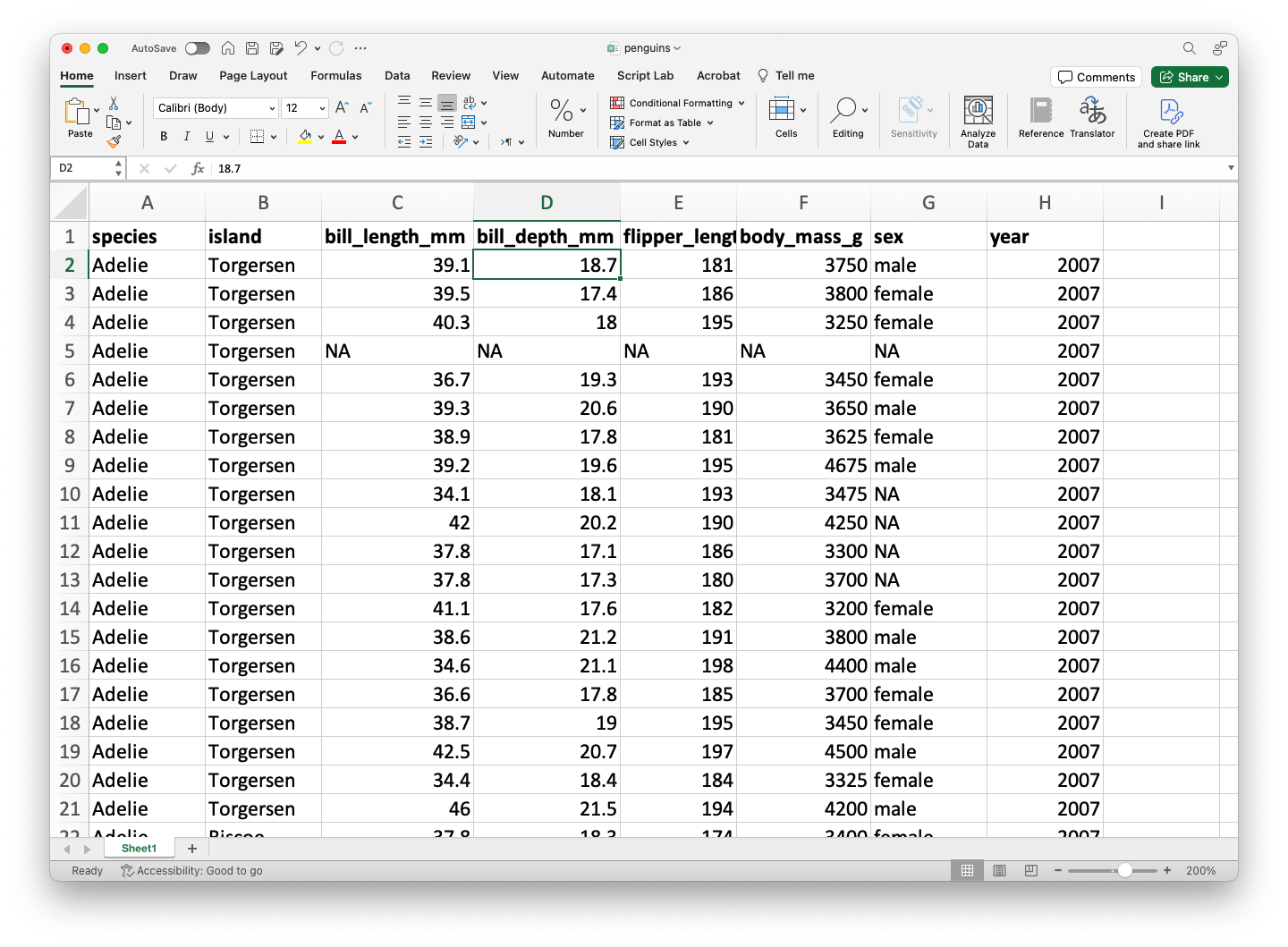
The file must be previously uploaded to Google Colab.
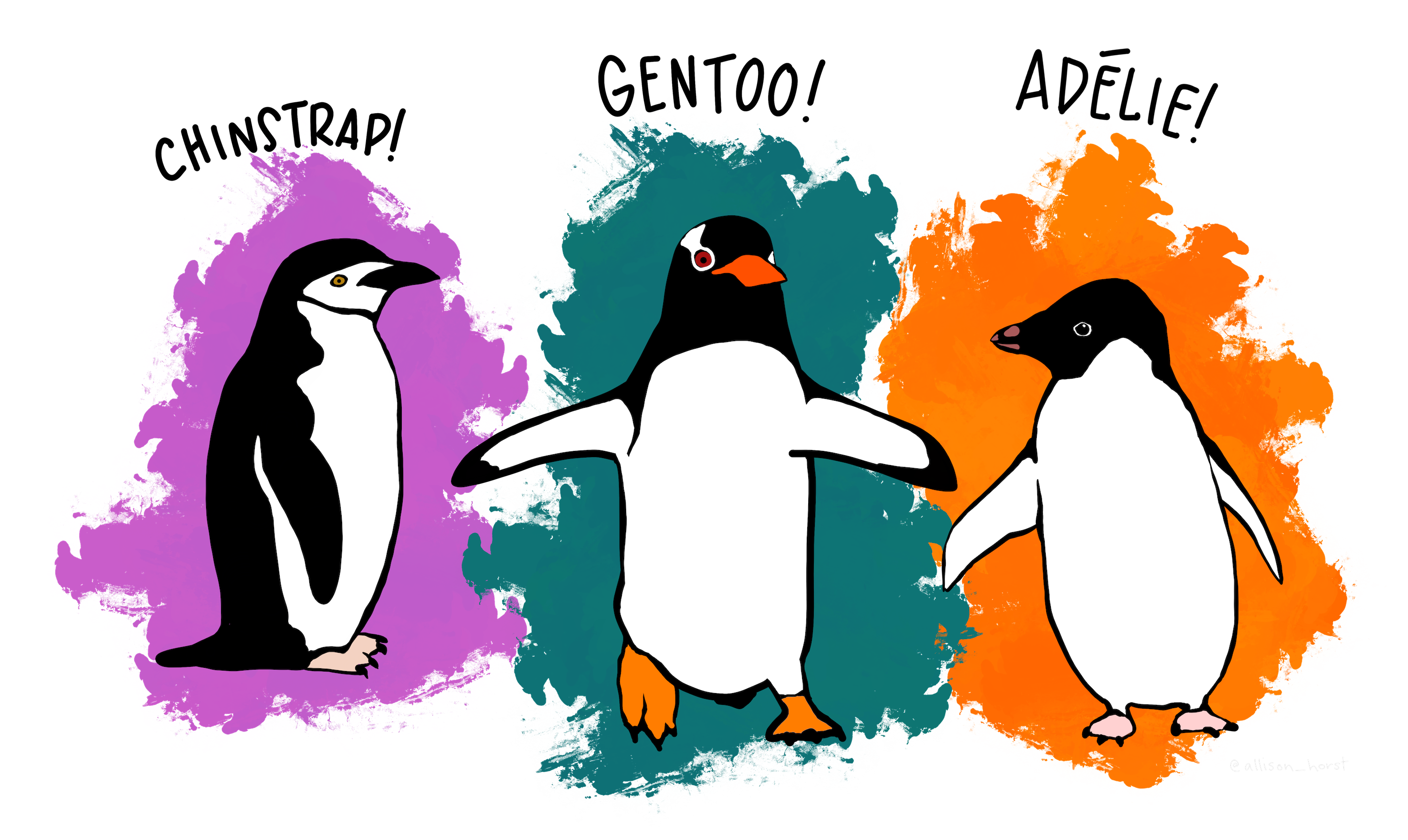
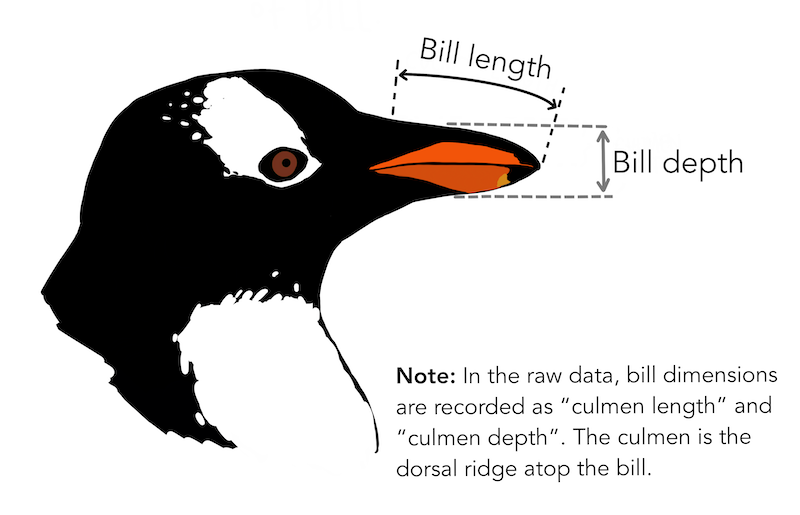
The dataset penguins.xlsx contains data from penguins living in three islands.
Alan Vazquez with a gentoo penguin

pandas library

- pandas is an open-source Python library for data manipulation and analysis.
- It is built on top of numpy for high-performance data operations.
- It allows the user to import, clean, transform, and analyze data efficiently
- https://pandas.pydata.org/
Importing pandas
Fortunately, the pandas library is already pre-installed in Google Colab.
However, we need to inform Google Colab that we want to use pandas and its functions using the following command:
The command as pd allows us to have a short name for pandas. To use a function of pandas, we use the command pd.function().
Loading data using pandas
The following code shows how to read the data in the file “penguins.xlsx” into Python.
The function head()
The function head() allows you to print the first rows of a pandas data frame.
| species | island | bill_length_mm | bill_depth_mm | flipper_length_mm | body_mass_g | sex | year | |
|---|---|---|---|---|---|---|---|---|
| 0 | Adelie | Torgersen | 39.1 | 18.7 | 181.0 | 3750.0 | male | 2007 |
| 1 | Adelie | Torgersen | 39.5 | 17.4 | 186.0 | 3800.0 | female | 2007 |
| 2 | Adelie | Torgersen | 40.3 | 18.0 | 195.0 | 3250.0 | female | 2007 |
| 3 | Adelie | Torgersen | NaN | NaN | NaN | NaN | NaN | 2007 |
Indexing variables a dataset
We can select a specific variables of a data frame using the syntaxis below.
0      39.1
1      39.5
2      40.3
3       NaN
4      36.7
       ...
339    55.8
340    43.5
341    49.6
342    50.8
343    50.2
Name: bill_length_mm, Length: 344, dtype: float64
Here, we selected the variable bill_length_mm in the penguins_data dataset.
To index multiple variables of a data frame, we put the names of the variables in a list object. For example, we select bill_length_mm, species, and island as follows:
Indexing rows
To index rows in a dataset, we use the argument loc from pandas. For example, we select the rows 3 to 6 of the penguins_dataset dataset:
| species | island | bill_length_mm | bill_depth_mm | flipper_length_mm | body_mass_g | sex | year | |
|---|---|---|---|---|---|---|---|---|
| 2 | Adelie | Torgersen | 40.3 | 18.0 | 195.0 | 3250.0 | female | 2007 |
| 3 | Adelie | Torgersen | NaN | NaN | NaN | NaN | NaN | 2007 |
| 4 | Adelie | Torgersen | 36.7 | 19.3 | 193.0 | 3450.0 | female | 2007 |
| 5 | Adelie | Torgersen | 39.3 | 20.6 | 190.0 | 3650.0 | male | 2007 |
| species | island | bill_length_mm | bill_depth_mm | flipper_length_mm | body_mass_g | sex | year | |
|---|---|---|---|---|---|---|---|---|
| 2 | Adelie | Torgersen | 40.3 | 18.0 | 195.0 | 3250.0 | female | 2007 |
| 3 | Adelie | Torgersen | NaN | NaN | NaN | NaN | NaN | 2007 |
| 4 | Adelie | Torgersen | 36.7 | 19.3 | 193.0 | 3450.0 | female | 2007 |
| 5 | Adelie | Torgersen | 39.3 | 20.6 | 190.0 | 3650.0 | male | 2007 |
Note that the index 2 and 5 refer to observations 3 and 7, respectively, in the dataset. This is because the first index in Python is 0.
Indexing rows and columns
Using loc, we can also retrieve a subset from the dataset by selecting specific columns and rows.
Mini-activity (solo mode)
Open the following Google Colab link: https://colab.research.google.com/drive/1xLoaOMharQmmasNApjm38jZcw-gtcxvm?usp=sharing
Copy the notebook to your drive.
Answer the questions.
Data manipulation with pandas
Chaining operations with pandas
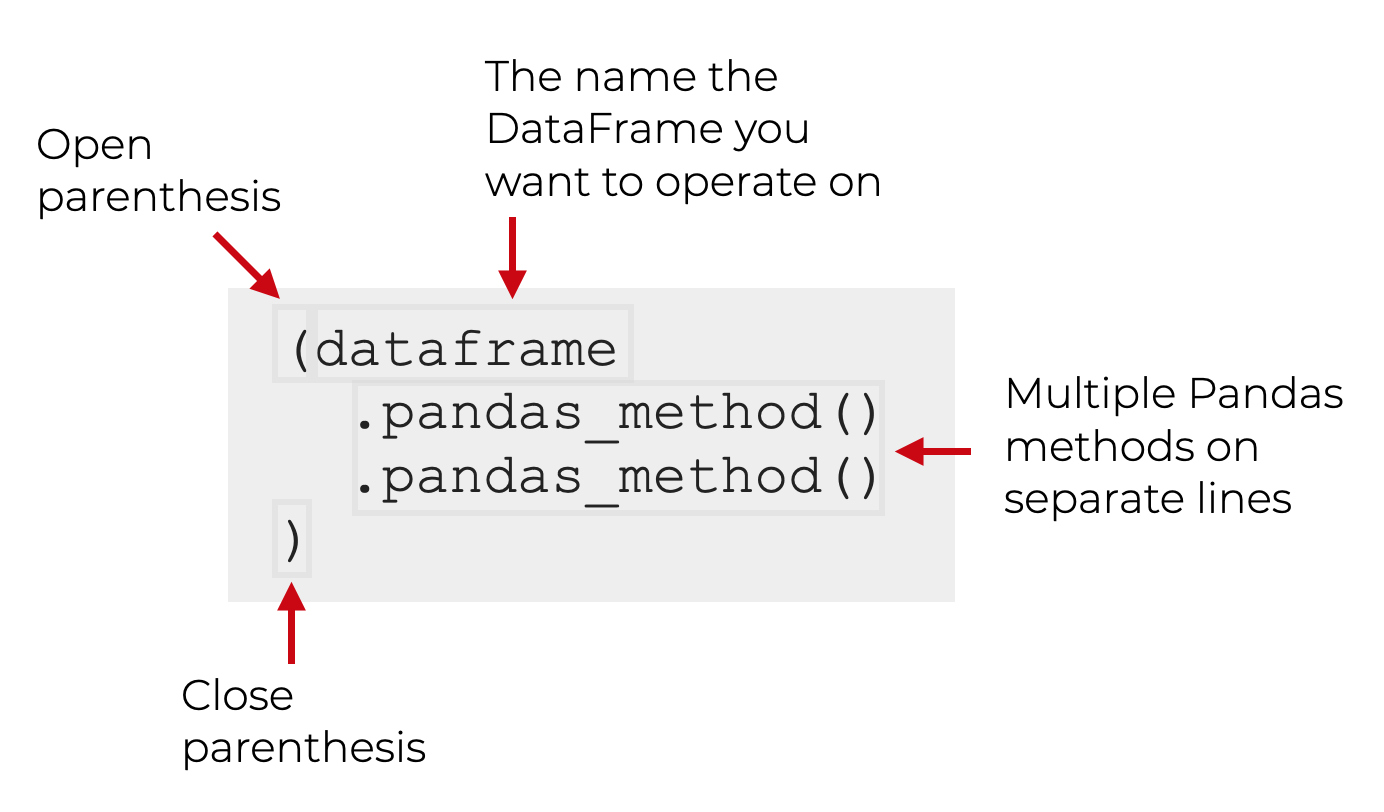
One of the most important techniques in pandas is chaining, which allows for cleaner and more readable data manipulation.
The general structure of chaining looks like this:
Key pandas methods
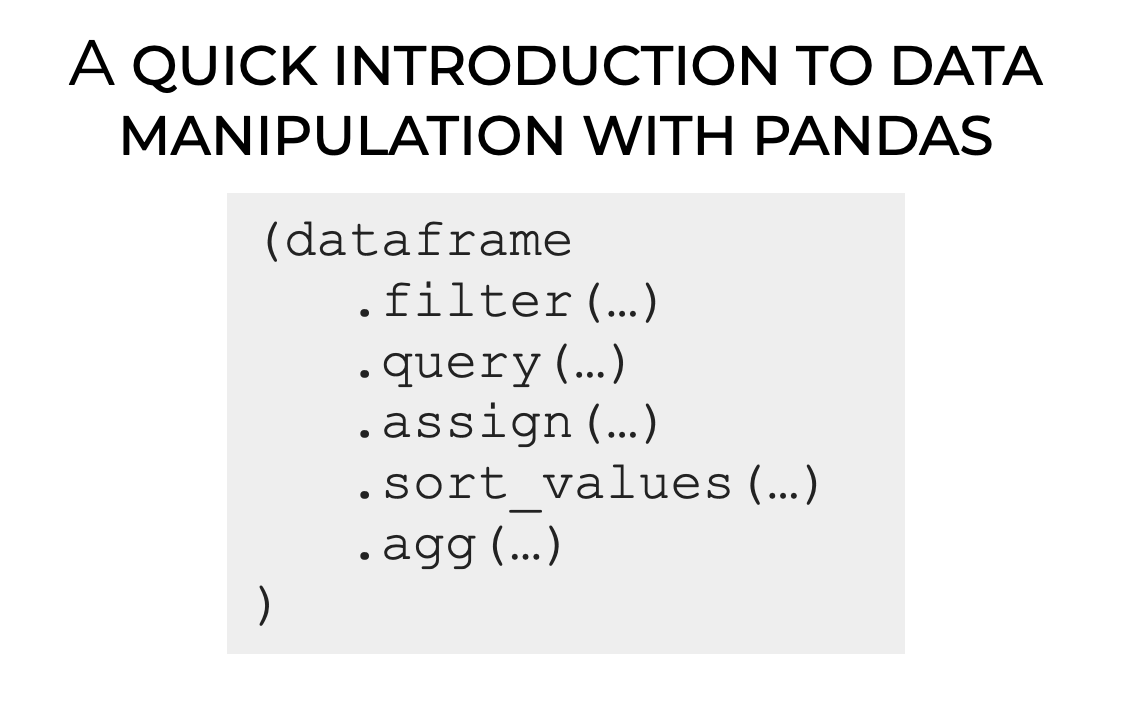
pandas provides methods or functions to solve common data manipulation tasks:
.filter()selects specific columns or rows..query()filters observations based on conditions..assign()adds new variables that are functions of existing variables..sort_values()changes the order of rows..agg()reduces multiple values to a single numerical summary.
To practice, we will use the dataset penguins_data.
Example
Let’s load the dataset and the pandas library.
| species | island | bill_length_mm | bill_depth_mm | flipper_length_mm | body_mass_g | sex | year | |
|---|---|---|---|---|---|---|---|---|
| 0 | Adelie | Torgersen | 39.1 | 18.7 | 181.0 | 3750.0 | male | 2007 |
| 1 | Adelie | Torgersen | 39.5 | 17.4 | 186.0 | 3800.0 | female | 2007 |
| 2 | Adelie | Torgersen | 40.3 | 18.0 | 195.0 | 3250.0 | female | 2007 |
| 3 | Adelie | Torgersen | NaN | NaN | NaN | NaN | NaN | 2007 |
Selecting columns with .filter()
Select the columns species, body_mass_g and sex.
The axis argument tells .filter() whether to select rows (0) or columns (1) from the dataframe.
The
.head()command allows us to print the first six rows of the newly produced dataframe. We must remove it to have the entire new dataframe.
We can also use .filter() to select rows too. To this end, we set axis = 1. We can select specific rows, such as 0 and 10.
Or, we can select a set of rows using the function range(). For example, let’s select the first 5 rows.
| species | island | bill_length_mm | bill_depth_mm | flipper_length_mm | body_mass_g | sex | year | |
|---|---|---|---|---|---|---|---|---|
| 0 | Adelie | Torgersen | 39.1 | 18.7 | 181.0 | 3750.0 | male | 2007 |
| 1 | Adelie | Torgersen | 39.5 | 17.4 | 186.0 | 3800.0 | female | 2007 |
| 2 | Adelie | Torgersen | 40.3 | 18.0 | 195.0 | 3250.0 | female | 2007 |
| 3 | Adelie | Torgersen | NaN | NaN | NaN | NaN | NaN | 2007 |
| 4 | Adelie | Torgersen | 36.7 | 19.3 | 193.0 | 3450.0 | female | 2007 |
Filtering rows with .query()
An alternative way of selecting rows is .query(). Compared to .filter(), .query() allows us to filter the data using statements or queries involving the variables.
For example, let’s filter the data for the species “Gentoo.”
| species | island | bill_length_mm | bill_depth_mm | flipper_length_mm | body_mass_g | sex | year | |
|---|---|---|---|---|---|---|---|---|
| 152 | Gentoo | Biscoe | 46.1 | 13.2 | 211.0 | 4500.0 | female | 2007 |
| 153 | Gentoo | Biscoe | 50.0 | 16.3 | 230.0 | 5700.0 | male | 2007 |
| 154 | Gentoo | Biscoe | 48.7 | 14.1 | 210.0 | 4450.0 | female | 2007 |
| 155 | Gentoo | Biscoe | 50.0 | 15.2 | 218.0 | 5700.0 | male | 2007 |
| 156 | Gentoo | Biscoe | 47.6 | 14.5 | 215.0 | 5400.0 | male | 2007 |
We can also filter the data to get penguins with a body mass greater than 5000g.
| species | island | bill_length_mm | bill_depth_mm | flipper_length_mm | body_mass_g | sex | year | |
|---|---|---|---|---|---|---|---|---|
| 153 | Gentoo | Biscoe | 50.0 | 16.3 | 230.0 | 5700.0 | male | 2007 |
| 155 | Gentoo | Biscoe | 50.0 | 15.2 | 218.0 | 5700.0 | male | 2007 |
| 156 | Gentoo | Biscoe | 47.6 | 14.5 | 215.0 | 5400.0 | male | 2007 |
| 159 | Gentoo | Biscoe | 46.7 | 15.3 | 219.0 | 5200.0 | male | 2007 |
| 161 | Gentoo | Biscoe | 46.8 | 15.4 | 215.0 | 5150.0 | male | 2007 |
We can even combine .filter() and .query(). For example, let’s select the columns species, body_mass_g and sex, then filter the data for the “Gentoo” species.
Create new columns with .assign()
With .assign(), we can create new columns (variables) that are functions of existing ones. This function uses a special Python keyword called lambda. Technically, this keyword defines an anonymous function.
For example, we create a new variable LDRatio equaling the ratio of bill_length_mm and bill_depth_mm.
In this code, the df after lambda indicates that the dataframe (penguins_data) will be referred to as df inside the function. The colon : sets the start of the function.
The code appends the new variable to the end of the resulting dataframe.
We can see the new variable using .filter().
Sorting with .sort_values()
We can sort the data based on a column like bill_length_mm.
| species | island | bill_length_mm | bill_depth_mm | flipper_length_mm | body_mass_g | sex | year | |
|---|---|---|---|---|---|---|---|---|
| 142 | Adelie | Dream | 32.1 | 15.5 | 188.0 | 3050.0 | female | 2009 |
| 98 | Adelie | Dream | 33.1 | 16.1 | 178.0 | 2900.0 | female | 2008 |
| 70 | Adelie | Torgersen | 33.5 | 19.0 | 190.0 | 3600.0 | female | 2008 |
| 92 | Adelie | Dream | 34.0 | 17.1 | 185.0 | 3400.0 | female | 2008 |
To sort in descending order, use ascending=False inside sort_values().
| species | island | bill_length_mm | bill_depth_mm | flipper_length_mm | body_mass_g | sex | year | |
|---|---|---|---|---|---|---|---|---|
| 185 | Gentoo | Biscoe | 59.6 | 17.0 | 230.0 | 6050.0 | male | 2007 |
| 293 | Chinstrap | Dream | 58.0 | 17.8 | 181.0 | 3700.0 | female | 2007 |
| 253 | Gentoo | Biscoe | 55.9 | 17.0 | 228.0 | 5600.0 | male | 2009 |
| 339 | Chinstrap | Dream | 55.8 | 19.8 | 207.0 | 4000.0 | male | 2009 |
| 267 | Gentoo | Biscoe | 55.1 | 16.0 | 230.0 | 5850.0 | male | 2009 |
Summarizing with .agg()
We can calculate summary statistics of the columns bill_length_mm, bill_depth_mm, and body_mass_g.
| bill_length_mm | bill_depth_mm | body_mass_g | |
|---|---|---|---|
| mean | 43.92193 | 17.15117 | 4201.754386 |
By default,
agg()ignores missing values.
Saving results in new objects
After performing operations on our data, we can save the modified dataset as a new object.
Saving pandas dataframes into Excel
Finally, we can save the pandas objects into an Excel file using the function .to_excel() as follows.
Of course, remove the # symbol before running the code.
More on pandas
Final remarks
pandas is a library that allows us to manipulate data in Python.
Variable types help specify the operations and visualizations we can apply to the data.
There are appropriate or designed graphs for visualizing numeric or categorical variables.
In this course, we will see several graphs for each variable type and their combinations.
Return to main page

Tecnologico de Monterrey
Comments
Sometimes we write things in the coding window that we want Python to ignore. These are called comments and start with
#.Python will ignore the comments and just execute the code.