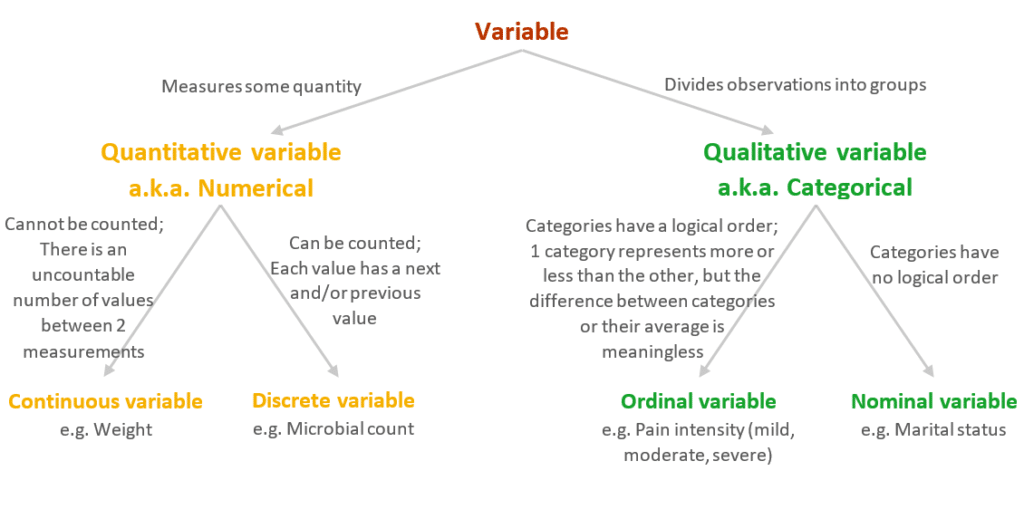
Shows frequencies of the categories of a categorical variable.
Construct a bar chart in Flourish
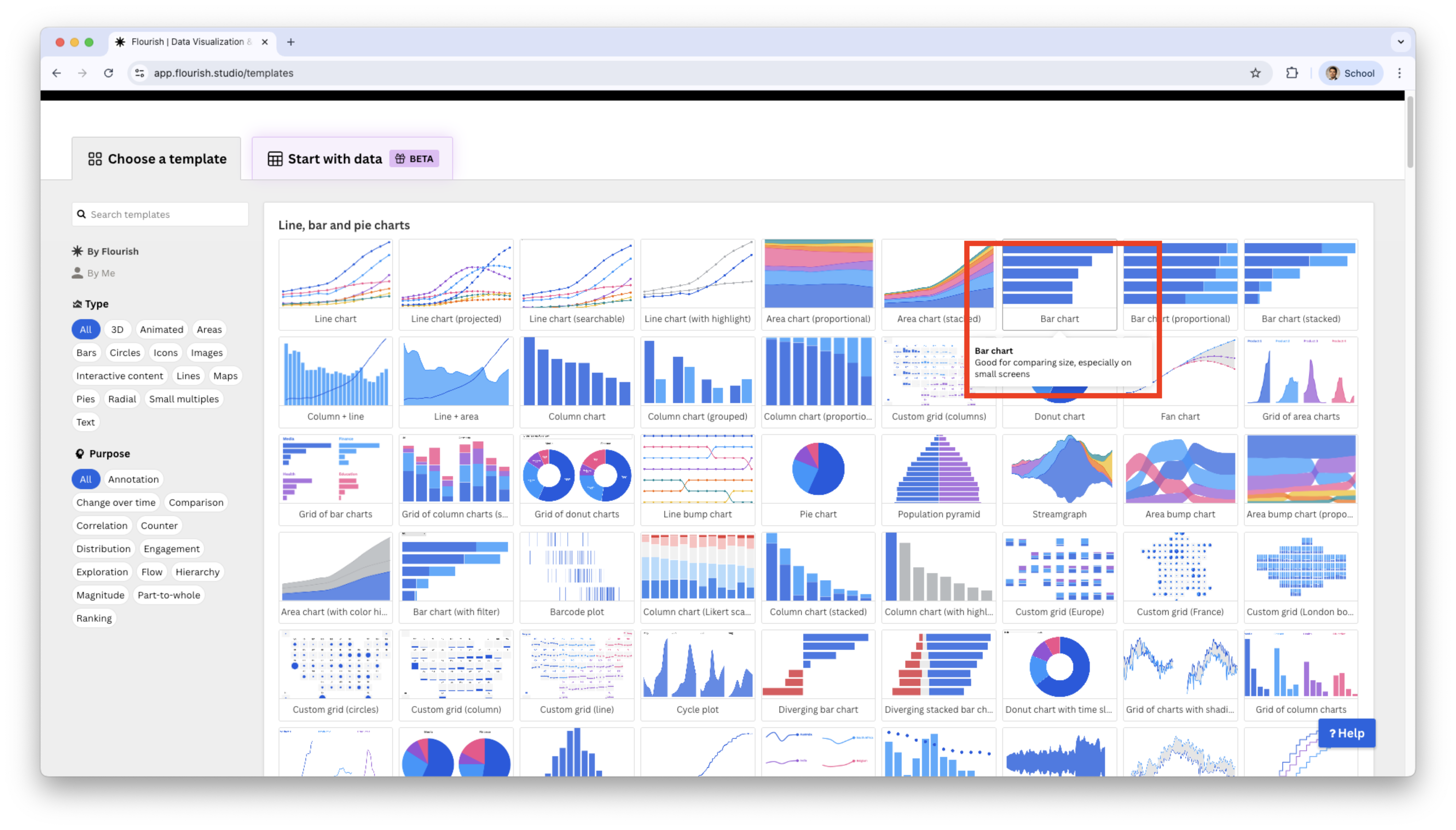
In the visualization gallery, choose Bar Chart.
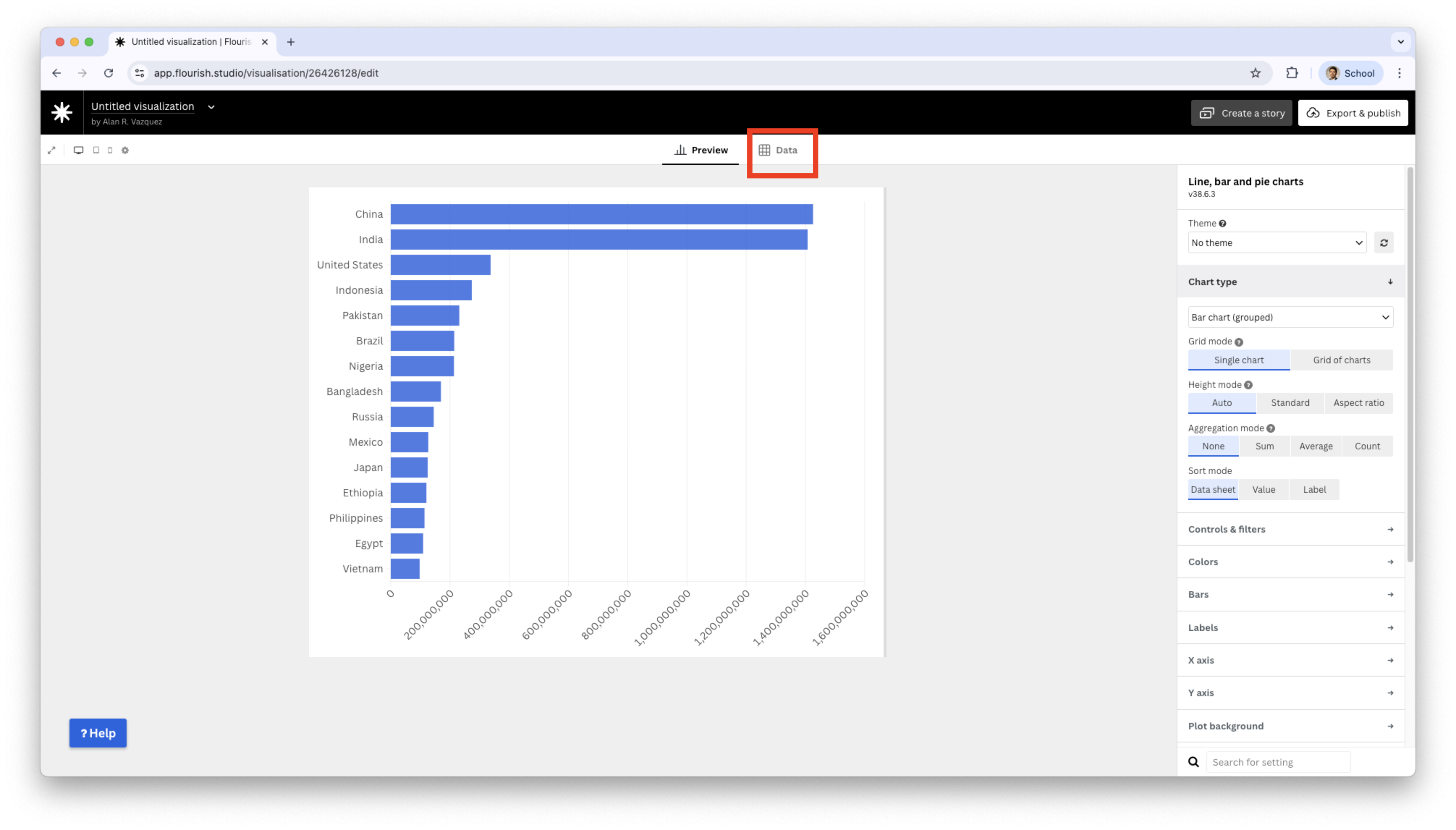
Replace the data with your own
Select the correct variables
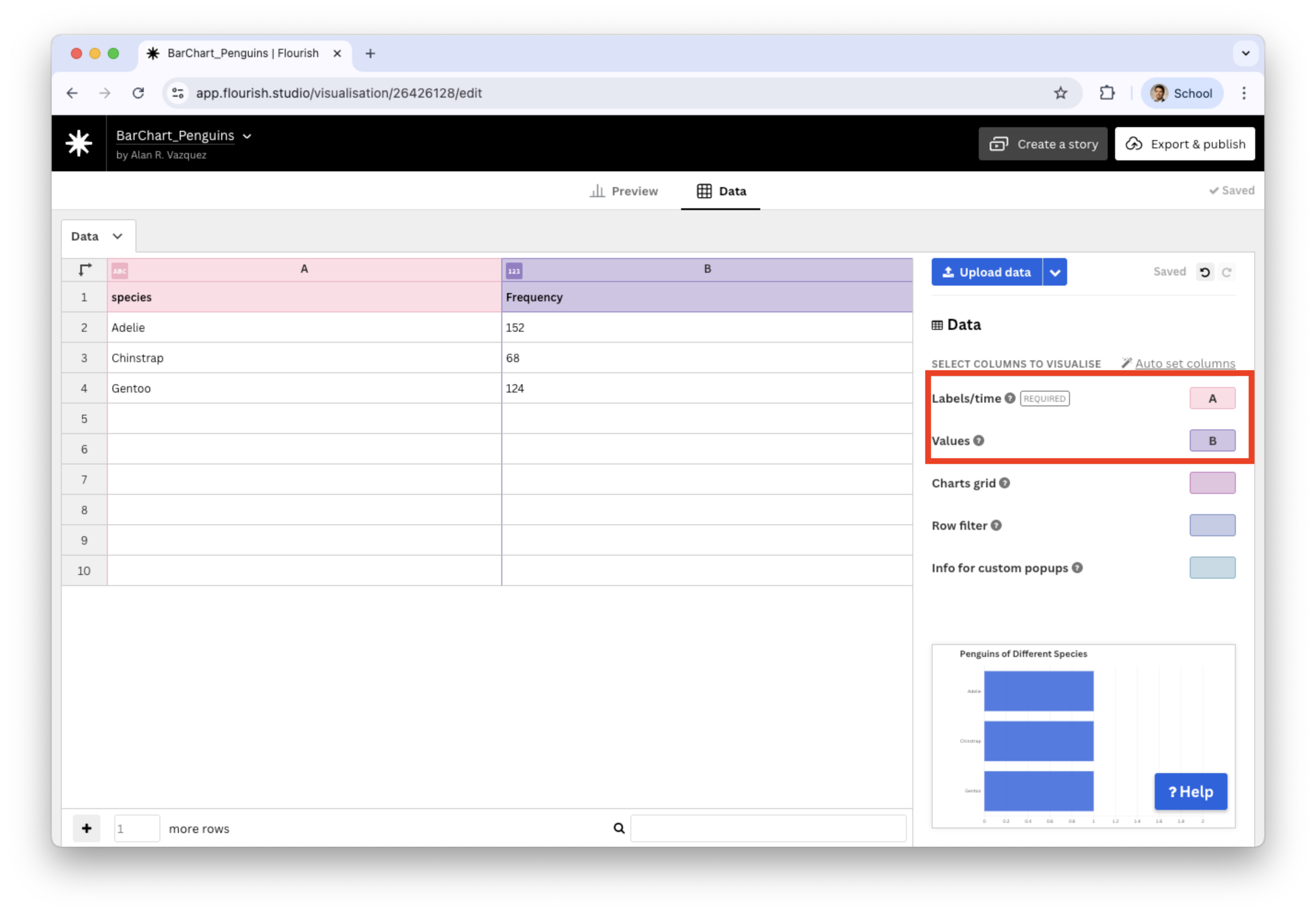
Make sure that you uploaded the file “PenguinsDataFlourish.xlsx” and not the original one.
Now, we assign the variable species to Labels/time, and Frequency to Values.
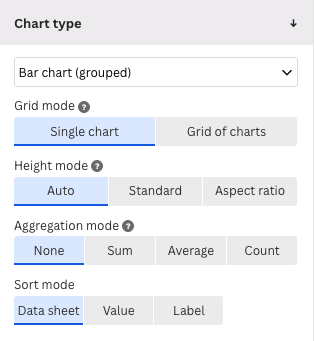
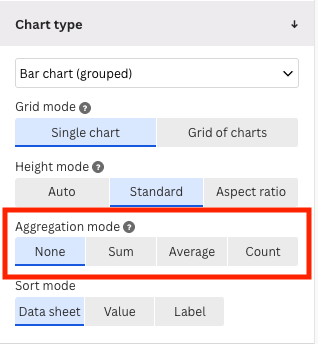
The preview plot has all bars at the same height. To replace the height for the frequencies of the categories, we change the Agregation mode to None.
We also change the Height mode to Standard to enhance the visualization.
Principle 1: Define the message
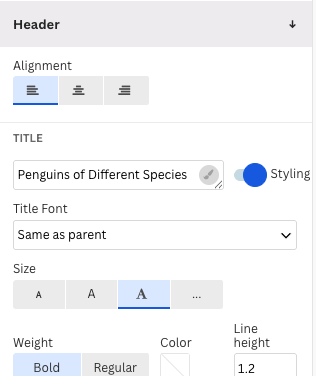
Following Principle 1 of data visualization, we add a header or title to the plot by going to the section Header.
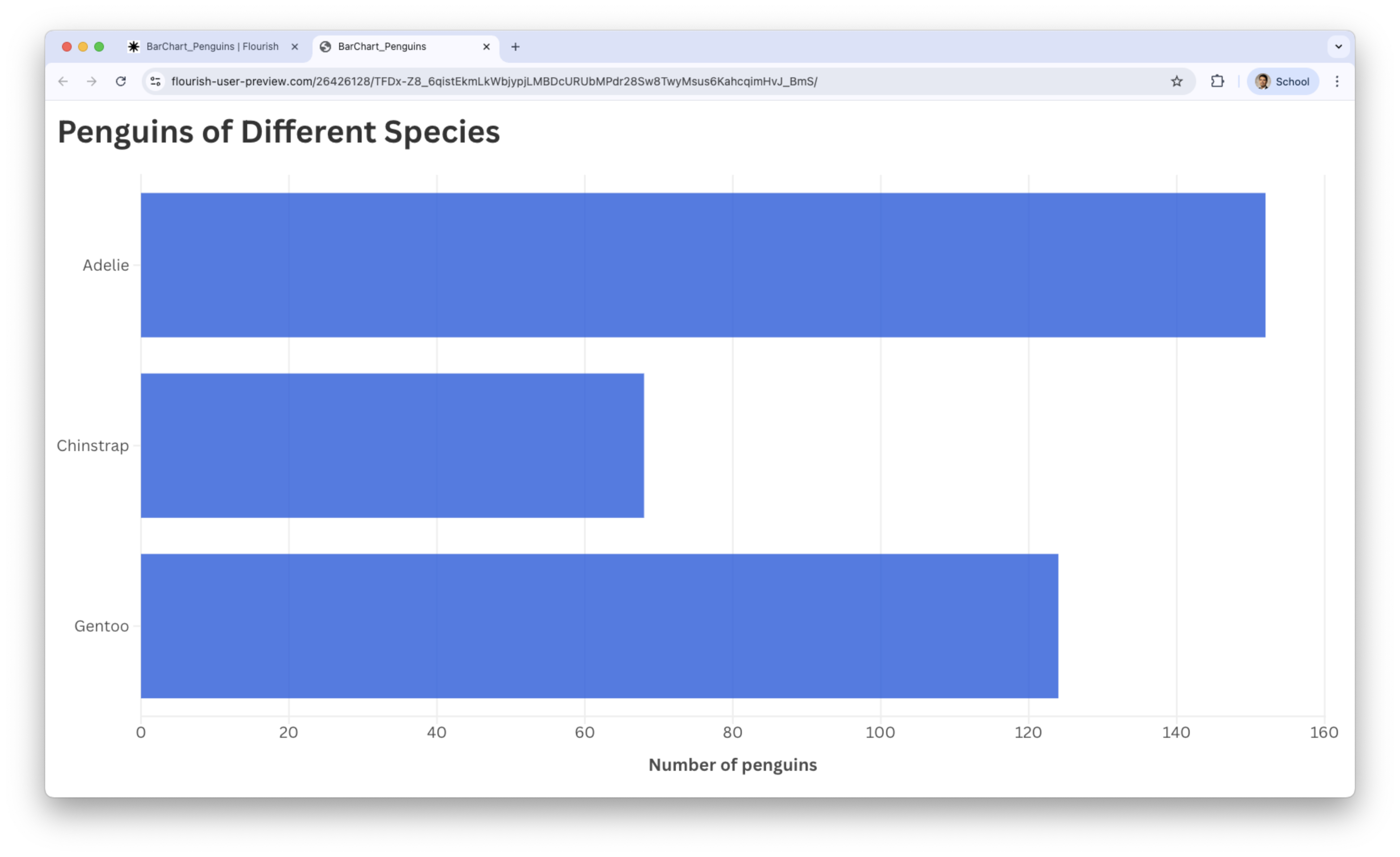
Final bar chart
We see that most penguins are Adelie.
Example 2: Boston Housing Dataset
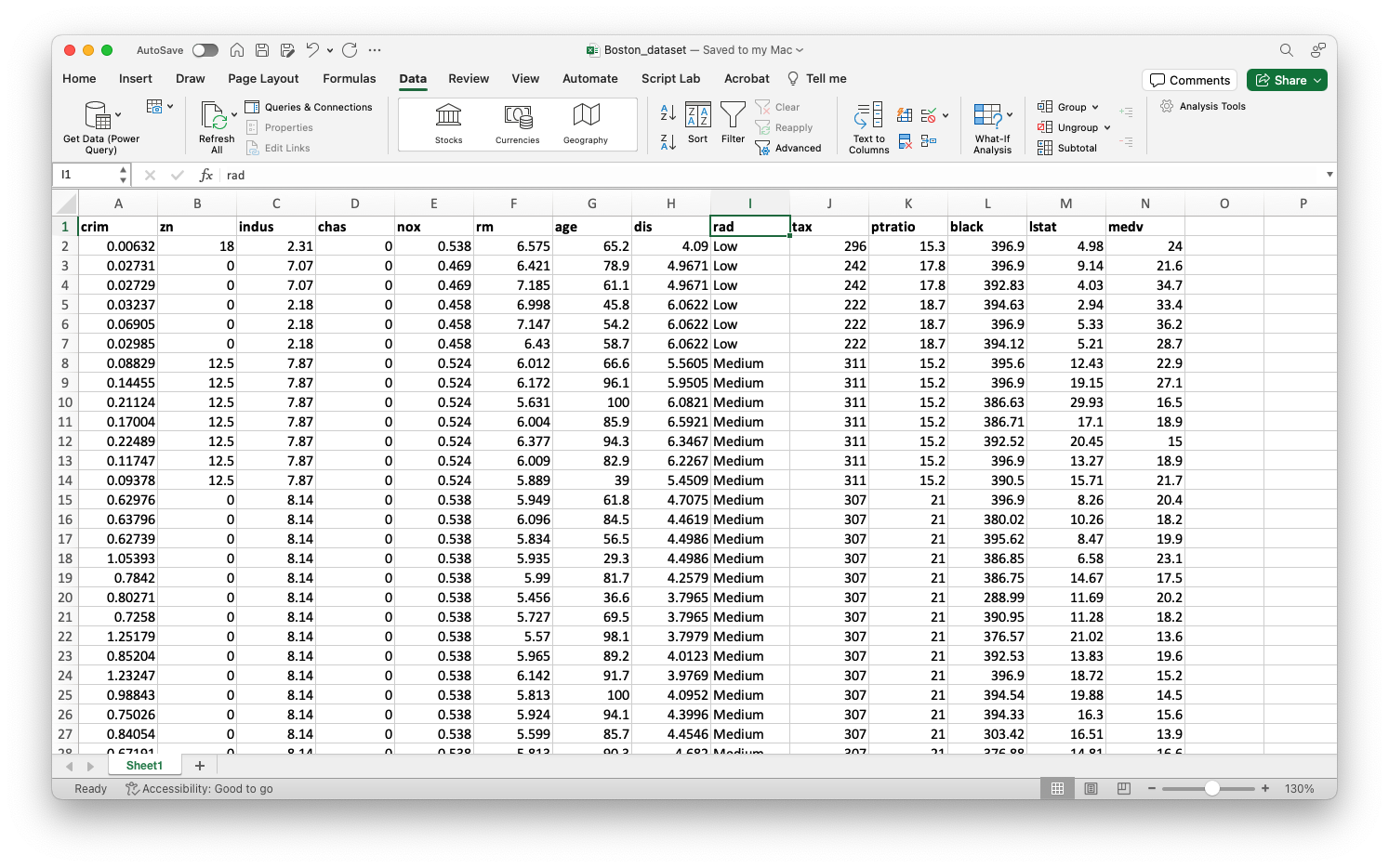
This dataset contains information collected by the U.S. Census Bureau on housing in the Boston, Massachusetts area. The dataset is in Boston_dataset.xlsx.
We concentrate on the following variables:
chas : Whether the house is next to the Charles River (1: Yes and 0: No)
rad : Index of accessibility to radial highways (0: Low, 1: Medium, 2: High).
Data wrangling with Python
To create a effective bar plots in Flourish, we must wrangle the variables chas and rad a little bit.
Specifically, we must ensure that these variables are categorical and their categories have the appropriate names.
We then proceed to visualize the processed data using Flourish.
Let’s create a bar chart for chas.
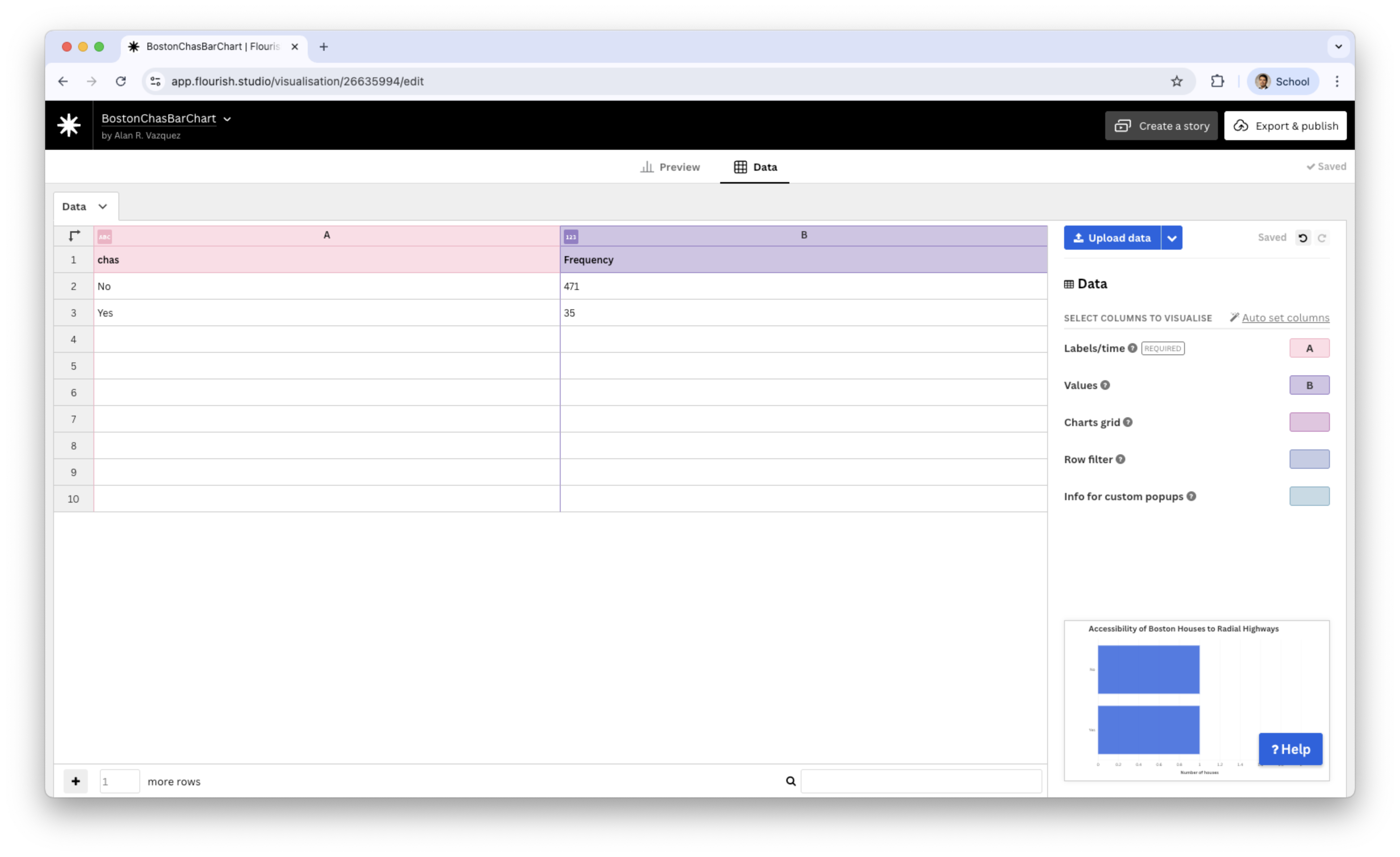
We load the dataset “BostonDataFlourishChas.xlsx” into Flourish.
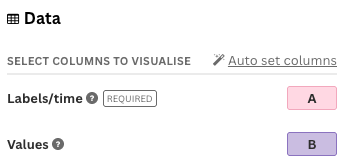
We assign the chas variable to the Labels/time and Frequency to Values.
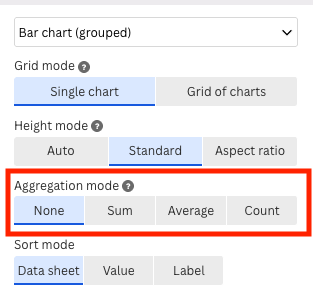
Now, we go back to the Preview tab and set Aggregation mode to None.
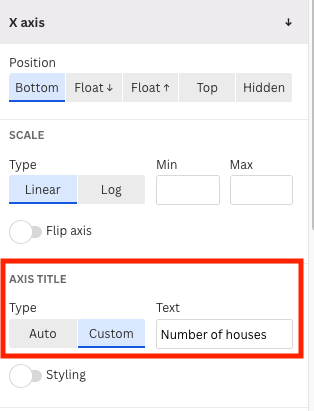
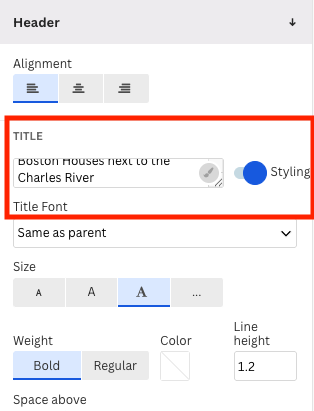
In the menu of the Preview tab, we add a title and a good label for the horizontal axis.
Bar chart for chas
Similarly, we create a bar chart for rad
Collapsing categories
Some categorical variables tend to have many categories. For example, states in a country or postal codes. In these cases, it can be difficult to visualize all the categories in a single graph.
One strategy for developing an effective visualization is to collapse categories.
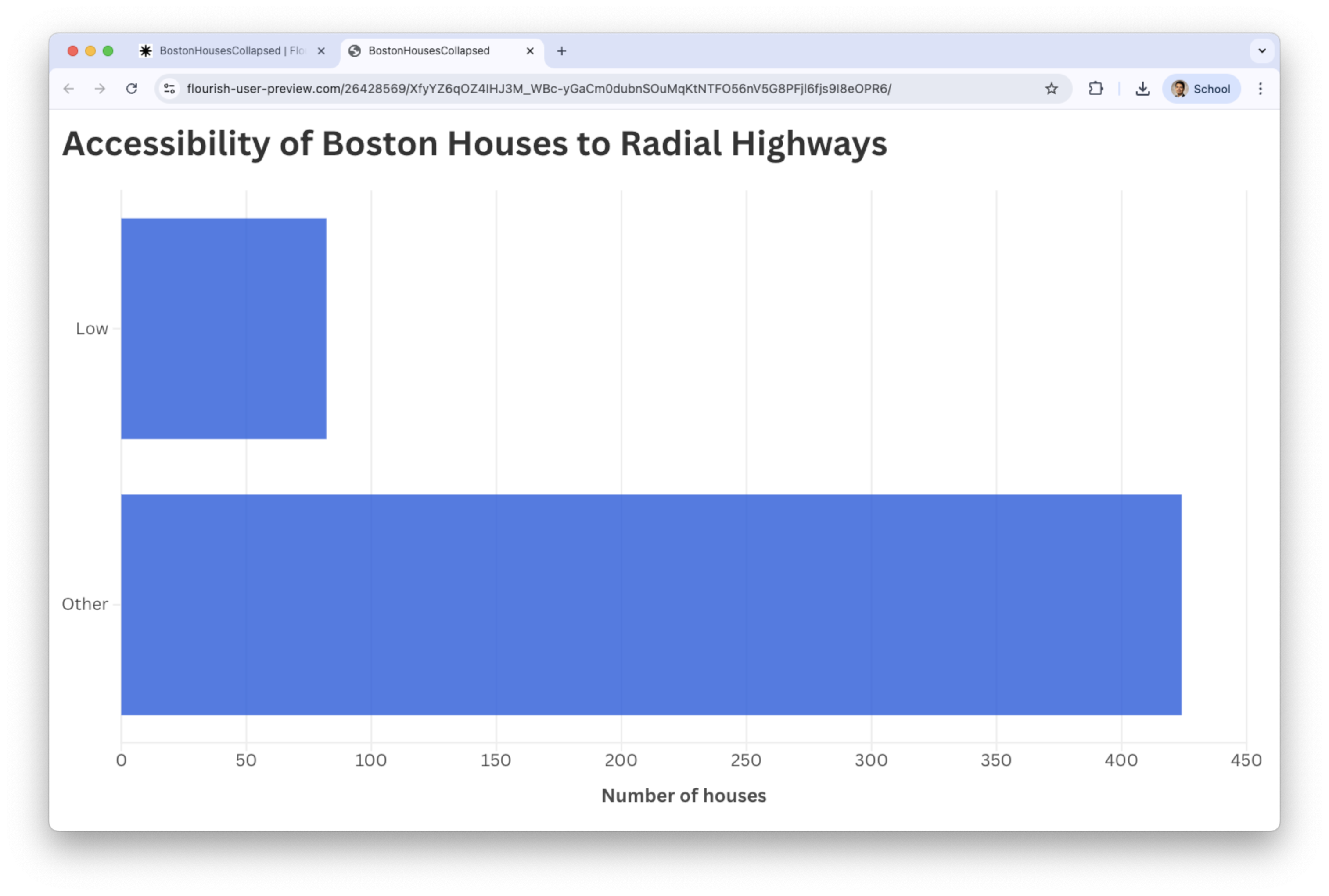
For example, in the variable rad, we can collapse the categories Medium and High into a single category called Other.
We collapse categories using the function called .where().
Collapsing categories simplifies the graph and allows us to emphasize a category like Low and see how it compares to the other categories (as a whole).
We save the new dataset using the function .to_excel().
We then proceed to visualize the processed data using Flourish.
The resulting bar chart
One Numerical Variable
Example 3
A piston is a mechanical device found in most engines.
One measure of a piston’s performance is the time it takes to complete a cycle, which we call “cycle time” and is measured in seconds.
The file “CYLT.xlsx” contains 50 cycle times of a piston operating under fixed conditions.
Beeswarm
Visualizes the distribution of individual observations along a numeric axis.
Each point represents one data value, and the points are arranged to avoid overlapping—similar to bees clustering around a hive.
This makes it easy to see where observations are dense or sparse, while still showing every individual data point.
Unlike histograms, which aggregate counts into bars, beeswarm plots preserve every point, giving a more detailed picture of the underlying distribution.
Beeswarm in Flourish
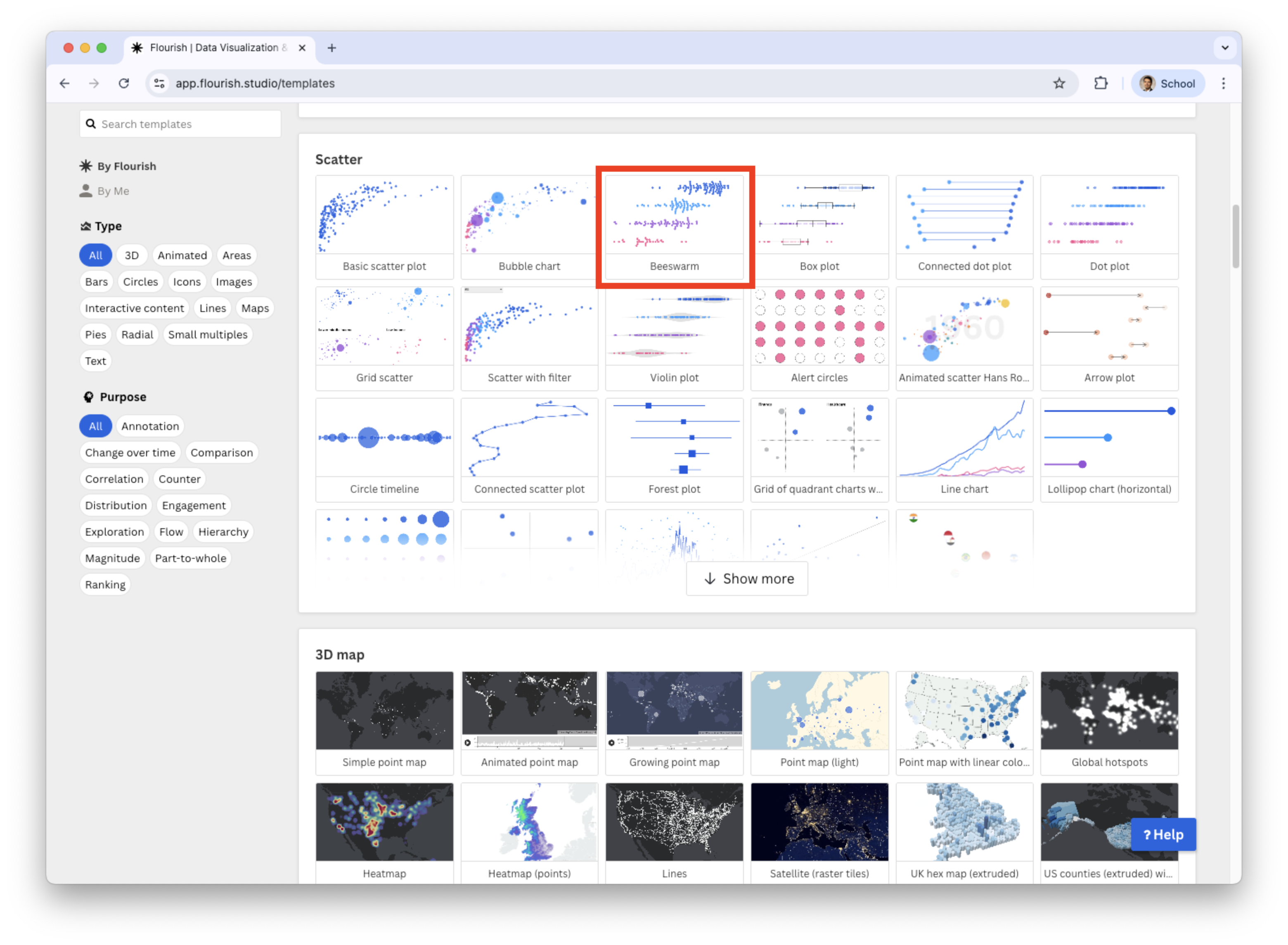
Beeswarm is in the section Scatter of the catalog of visualizations in Flourish.
In the Beeswarm plot, we replace the current data with the data in “CYLT.xlsx” in the Data tab.
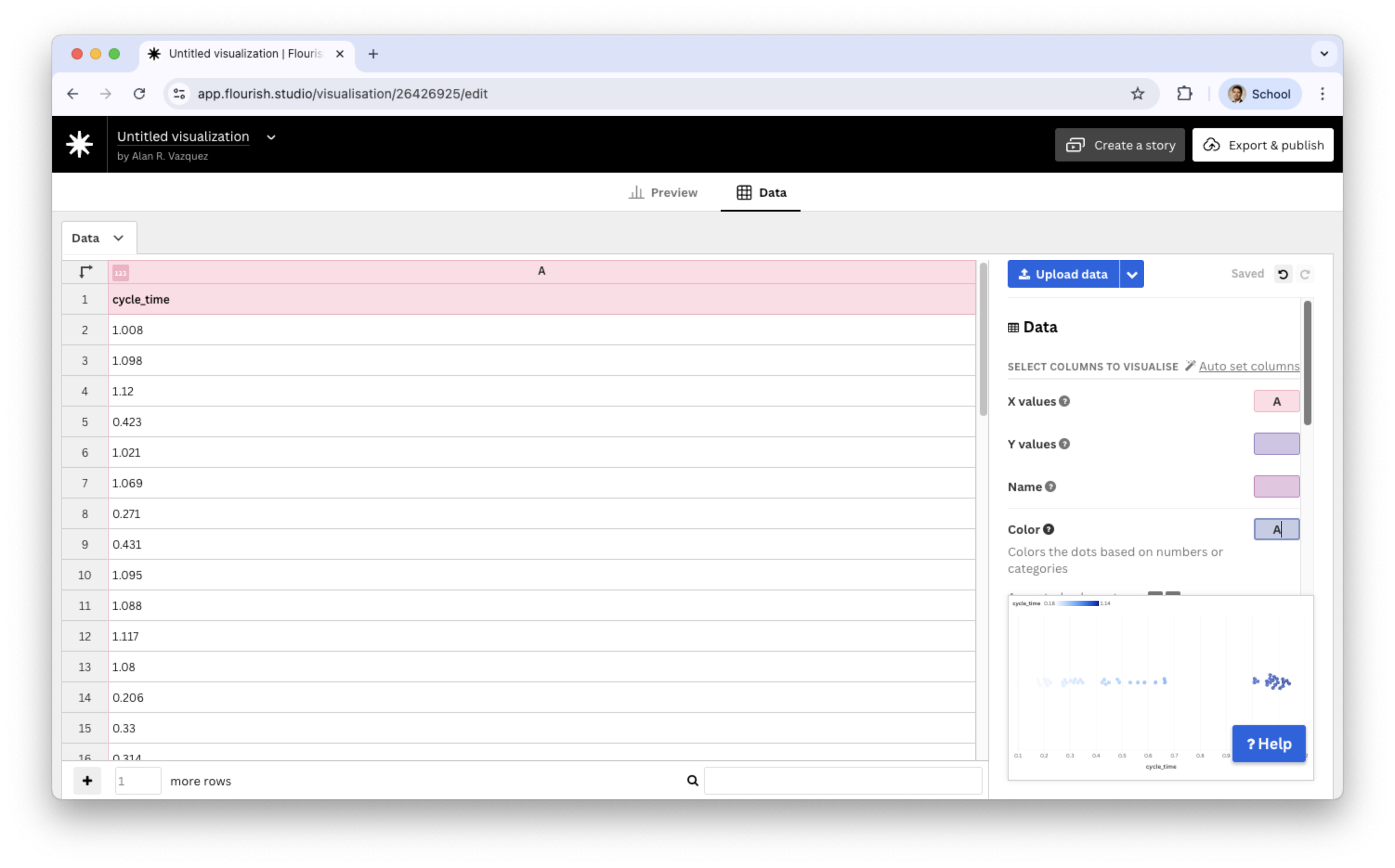
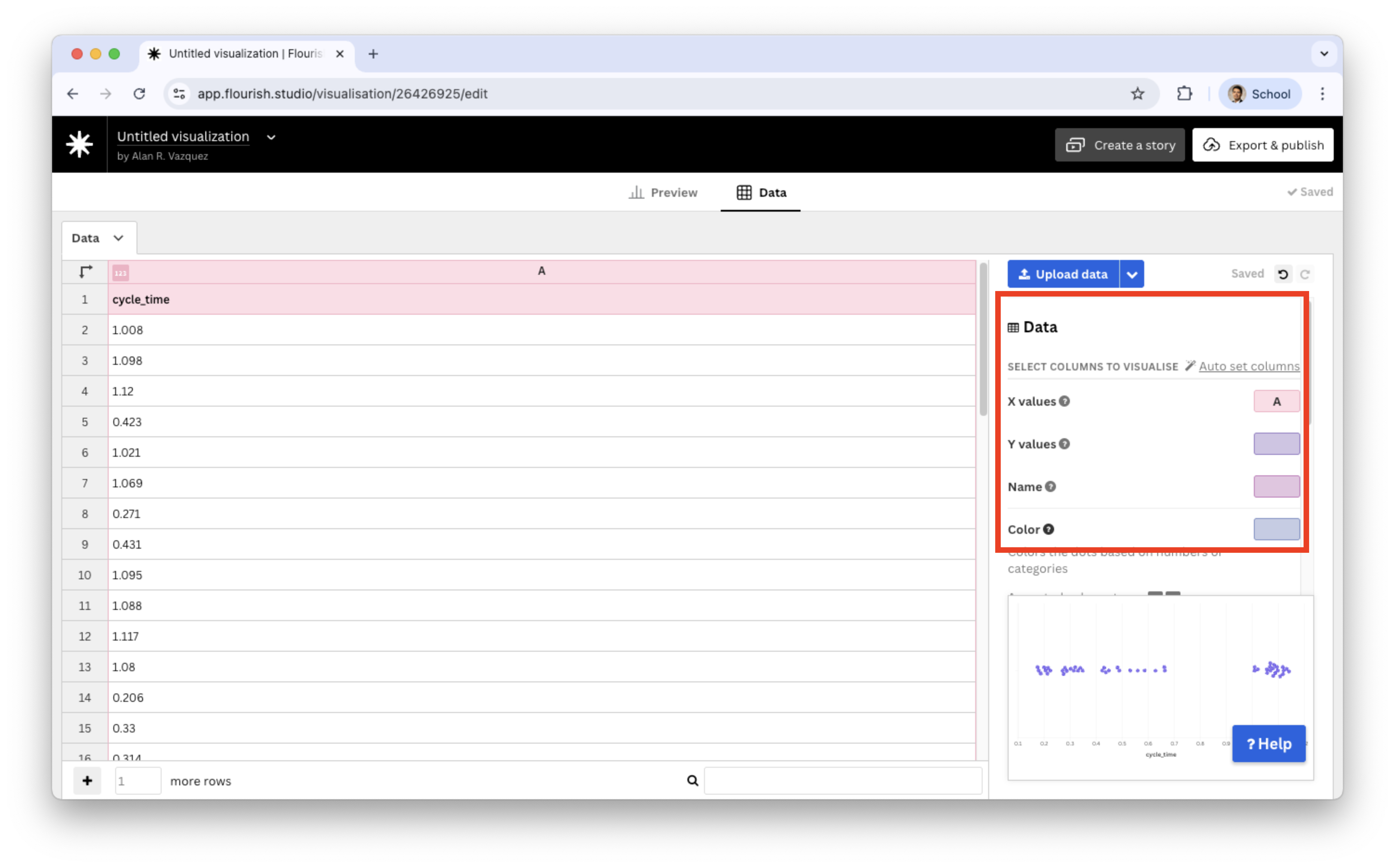
In the Data tab, we only assign the cycle_time variable to the X values section.
Let’s go back to the Preview tab.
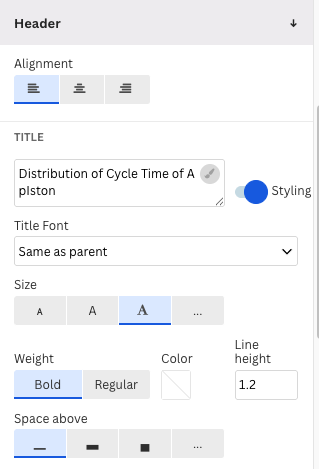
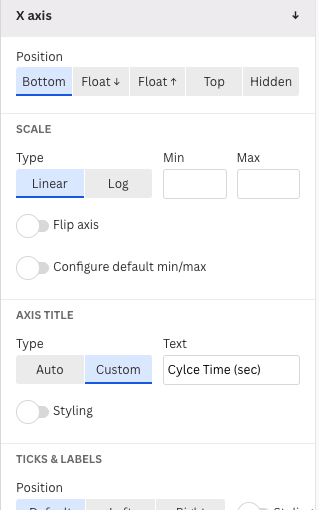
There, we modify the label of the horizontal axis X and header in the sections X axis and Header.
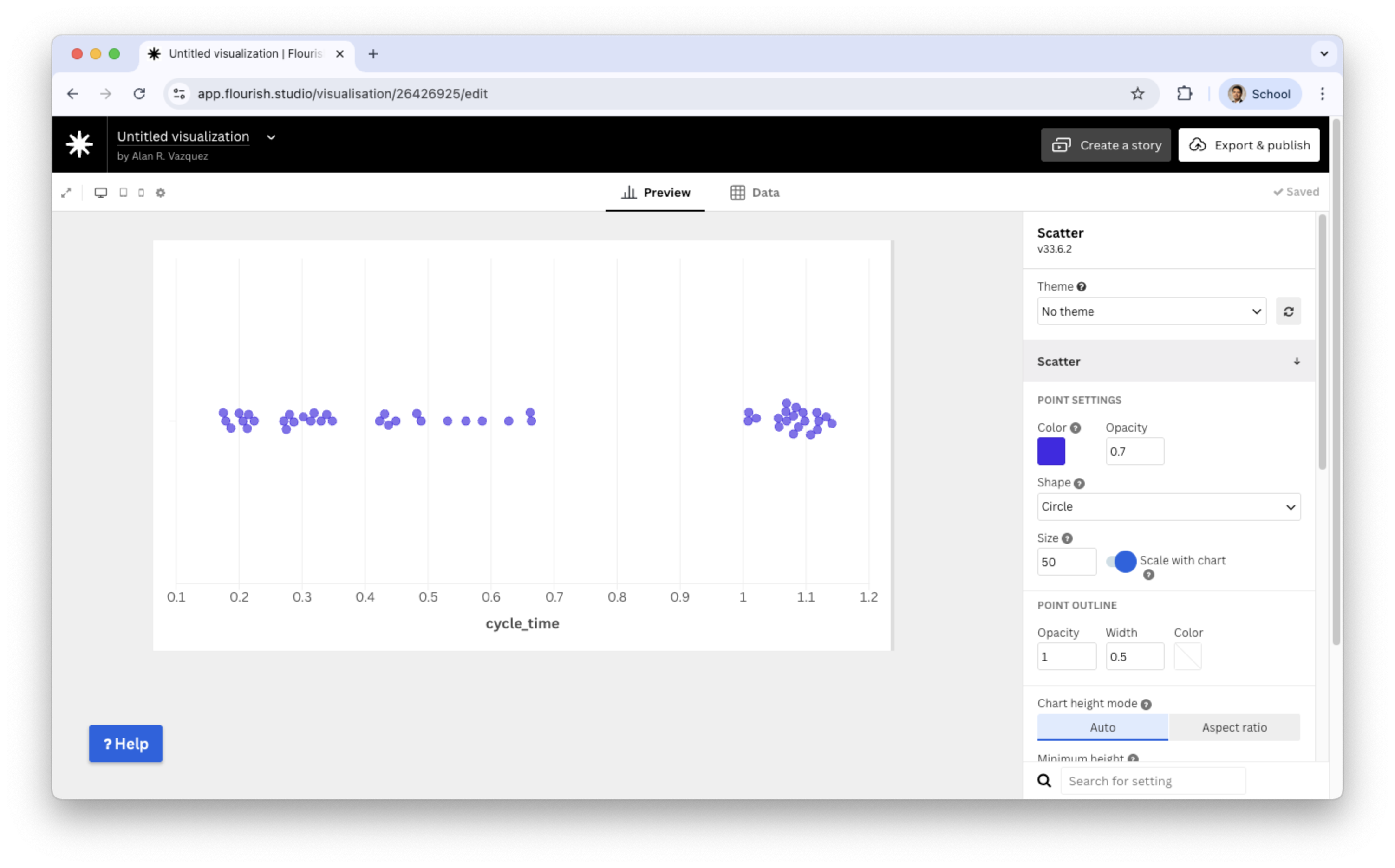
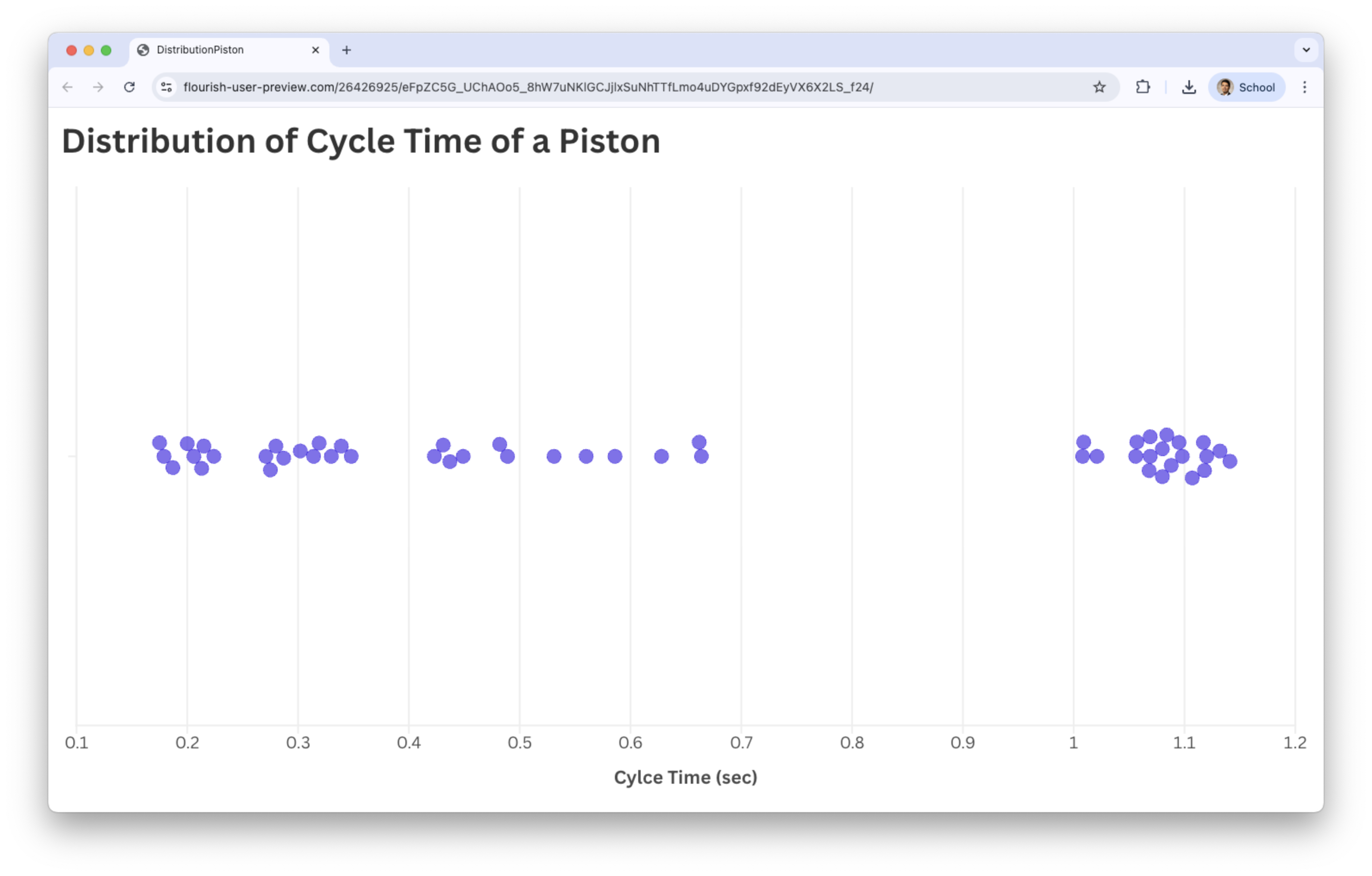
Beeswarm plot
What to look for in a beeswarm plot?
Clusters of points that reveal dense regions in the distribution.
Areas where points are more spread out, indicating low-frequency regions.
Gaps along the axis where no observations appear.
Outliers, visible as isolated points far from the main cluster.
The overall shape of the distribution formed by the pattern of points.